- Go to Interviews and click New interview.
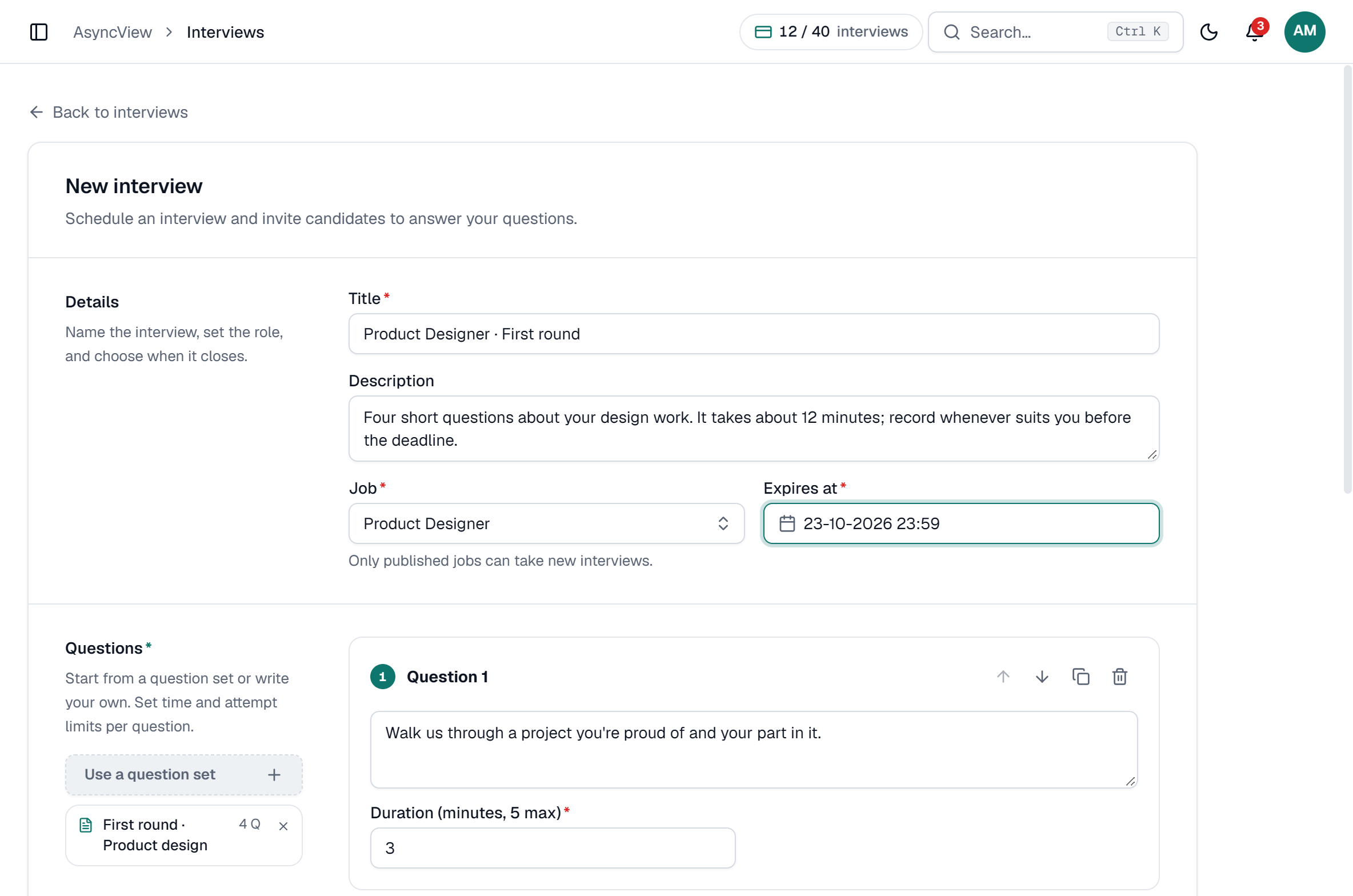
- Enter a Title. Candidates see it in their invite.
- Add an optional Description: context for the candidate, such as how long it takes.
- Choose the Job. Only published jobs are listed.
- Set Expires at: the date and time the link closes. It defaults to 11:59 PM and must be in the future.
- Add Questions (1 to 15), or click Use a question set.
- Add Candidates: a Full name and Email for each, or click Paste a list. See Invite candidates.
- Click Create interview.
app.asyncview.com
Invites go out by email as soon as you click. Each candidate becomes one row on Interviews, with their own link, status and deadline, so you can change one person's deadline without affecting anyone else.
Each candidate counts as one interview towards your plan. If a list is bigger than what your plan has left, the whole batch is refused, so trim it or upgrade first. See Plans, limits and what counts as an interview.
Once sent, an interview can't be cancelled or deleted. If you invited the wrong person, mark them Rejected to take them out of your pipeline.